Lists and tags both organize contacts, but they work best for different purposes.
| Tool | Best used for | Example |
|---|---|---|
| List | A stable audience or subscription group | Newsletter Subscribers |
| Tag | A flexible label describing an attribute or action | Customer, Prospect, Webinar Attendee |
Create a list
- Open Kelune CRM → Contacts → Lists.
- Select Create List.
- Enter a clear List Name.
- Add an optional description explaining who belongs in the list.
- Save the list.
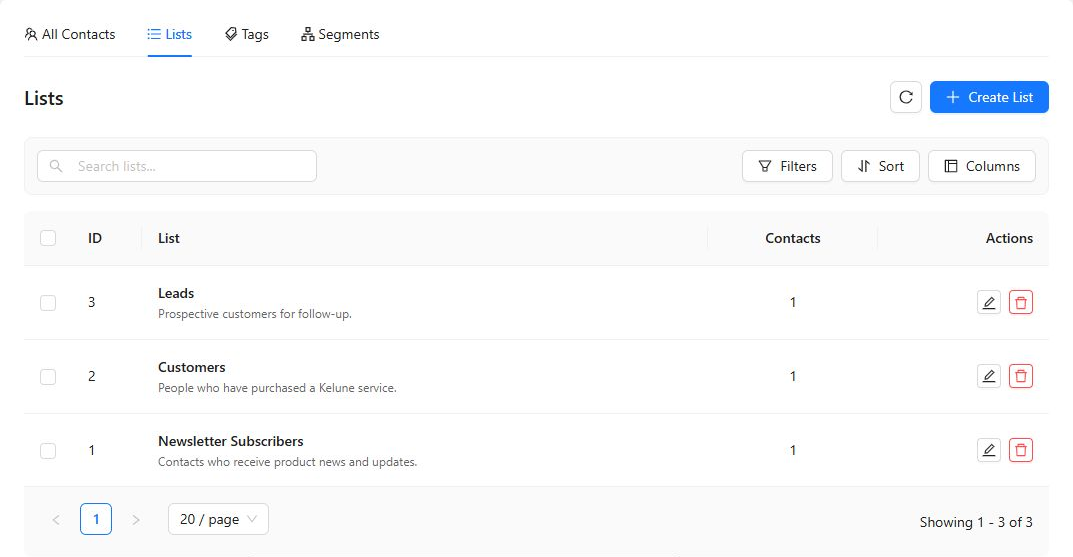
The Lists table shows each list’s contact count and type. Use search, filters, and sorting to find an existing list, or use its action menu to edit it.
Create a tag
- Open Kelune CRM → Contacts → Tags.
- Select Create Tag.
- Enter a concise Tag Name.
- Add an optional description so other users know when to apply it.
- Save the tag.
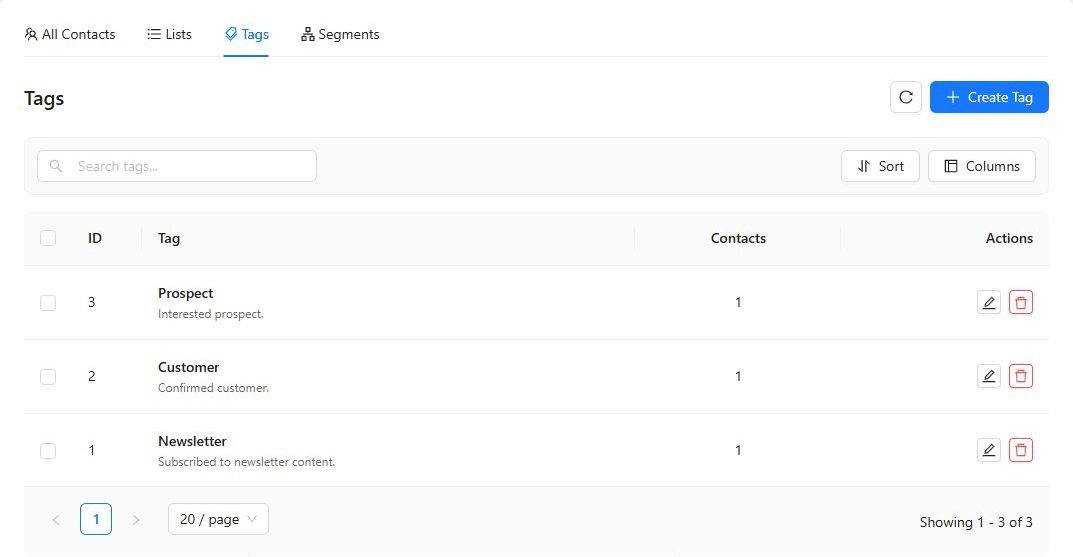
The Tags table displays the number of contacts using each tag. You can search, sort, edit, and delete tags from this screen.
Assign lists and tags
Open a contact for editing, then select one or more values under Lists and Tags. Save the contact after changing the assignments.
You can also assign lists and tags while creating a contact or map comma-separated Lists and Tags columns during an import.
Keep the structure useful
- Reuse an existing list or tag when it has the same meaning.
- Add descriptions where a name could be ambiguous.
- Avoid near-duplicates such as
Customer,Customers, andcustomer. - Review contact counts before deleting an item.