The Kelune CRM dashboard gives you a quick view of your audience and marketing activity. Open it by selecting Kelune CRM → Dashboard in WordPress.
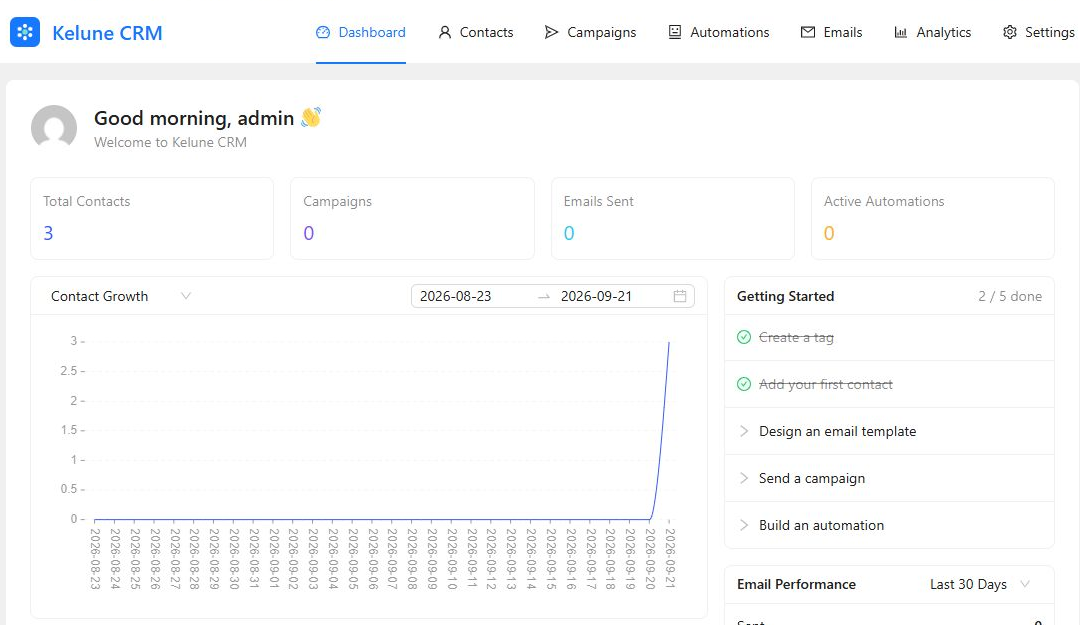
Summary cards
The four cards at the top show the current totals for:
| Card | What it shows |
|---|---|
| Total Contacts | Every contact currently stored in Kelune CRM |
| Campaigns | The total number of email campaigns |
| Emails Sent | Emails recorded as sent by Kelune CRM |
| Active Automations | Automations that are currently active |
Contact growth chart
The main chart shows how your contact total changes over time. Use the metric selector to switch between Contact Growth, Emails Sent, Email Opens, and Email Clicks. You can also choose a custom date range.
It is normal for a new installation to show an empty chart until contacts or email activity have been recorded.
Getting Started checklist
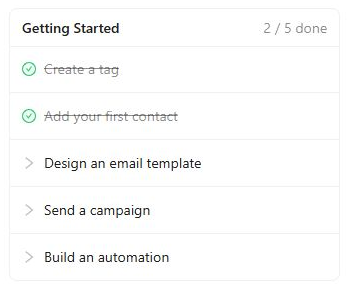
The checklist tracks five useful onboarding milestones:
- Create a tag.
- Add your first contact.
- Design an email template.
- Send a campaign.
- Build an automation.
Completed items are checked automatically. Select an unfinished item to open the relevant Kelune CRM screen.
Recent campaigns, contacts, and automations
- Recent Campaigns displays your latest campaigns and their send, open, and click information.
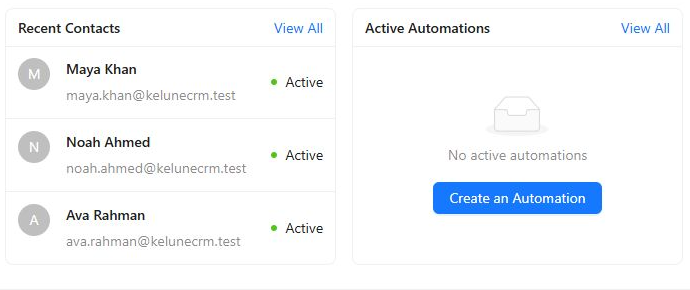
- Recent Contacts displays recently added contacts and their subscription status.
- Active Automations displays automations that are currently running.
Use View All to open the complete list. Empty panels include a button for creating the first item.
Email performance
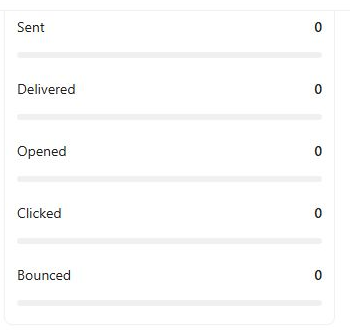
The Email Performance panel summarizes Sent, Delivered, Opened, Clicked, and Bounced messages. Use its date-range selector to view the last 30, 60, or 90 days, or all recorded activity.