Kelune CRM keeps each person’s profile, status, source, lists, tags, notes, and custom information in one contact record.
Open Kelune CRM → Contacts to view and manage your audience.
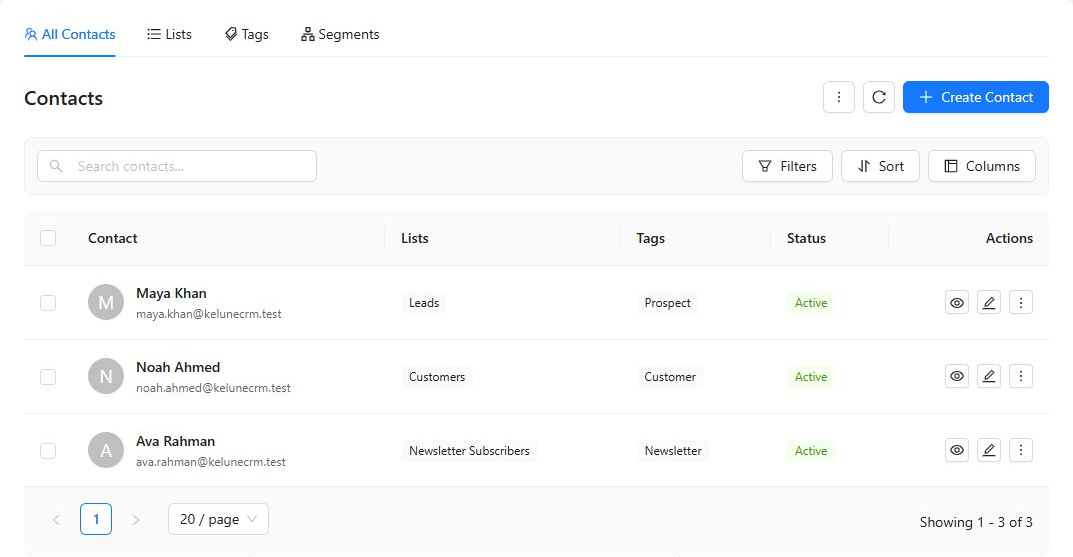
Add a contact
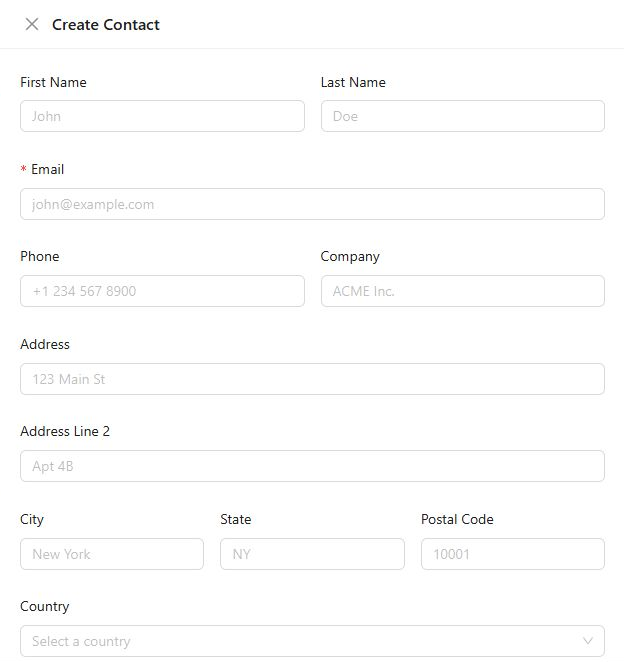
- Select Create Contact.
- Enter the contact’s First Name, Last Name, and Email.
- Add any available details, such as phone number, company, postal address, and country.
- Choose a Status and Source.
- Assign the contact to any relevant Lists and Tags.
- Complete any custom fields shown on the form.
- Save the contact.
Understand contact statuses
| Status | Use it for |
|---|---|
| Active | A contact who can receive campaigns |
| Pending | A contact waiting to confirm a double opt-in request |
| Unsubscribed | A contact who must not receive marketing campaigns |
Do not change an unsubscribed contact back to active unless you have a valid new consent from that person.
Find and organize contacts
Use the search box to find a contact by their stored information. Filters narrow the table by status, list, or tag, while sorting changes the order of the results.
You can select multiple rows when you need to apply the same supported action to several contacts. Review the selection carefully before using a bulk action.
View or edit a contact
Open a contact from the table to review their details and activity. From the contact record you can:
- Update personal, company, address, status, and source information.
- Add or remove lists and tags.
- Enter values for custom fields.
- Add internal notes for your team.
Save after making changes so the contact record and Contacts table stay in sync.
Delete a contact
Use the delete action only when the record should be removed from the CRM. Deleting a contact is different from setting the contact to Unsubscribed.